CAM for sheet parts

Assembly in.
Parts out.

Drop in an assembled STEP model. StepNest finds every flat part, nests it on your sheets and writes G-code your router can run.

Free to use, no sign-up. Your STEP file never leaves your computer.

No uploadFiles are processed on your device with WebAssembly
No installRuns in any current desktop or mobile browser
Seven controllersGRBL, Mach3/4, LinuxCNC, Syntec, Fanuc, Masso

Three steps. Most of them automatic.

  1. 1

    Drop in the model

    Export the whole assembly as STEP from Fusion, SolidWorks, Onshape, Rhino or SketchUp. Add more files to the job and set how many of each to make.

  2. 2

    Check the nest

    Every part is recognised, given a material and nested. Change a part, a tool or a sheet and the job re-plans in about a second.

  3. 3

    Cut

    Watch each sheet run in the simulation, then download the programs with a printable setup sheet.

Recognition

It reads the part the way a machinist would.

StepNest slices each solid through its thickness and works out what can be cut from the top: outside and inside profiles, pockets at any depth, holes, slots and open-edge rebates. If a part machines better face-down, it's flipped. Anything a router can't reach, such as undercuts or side bores, is flagged instead of guessed.

  • Identical parts are found and counted automatically
  • Blind and through features, circles and slots are told apart
  • Slanted faces become V-bit mitres and chamfers
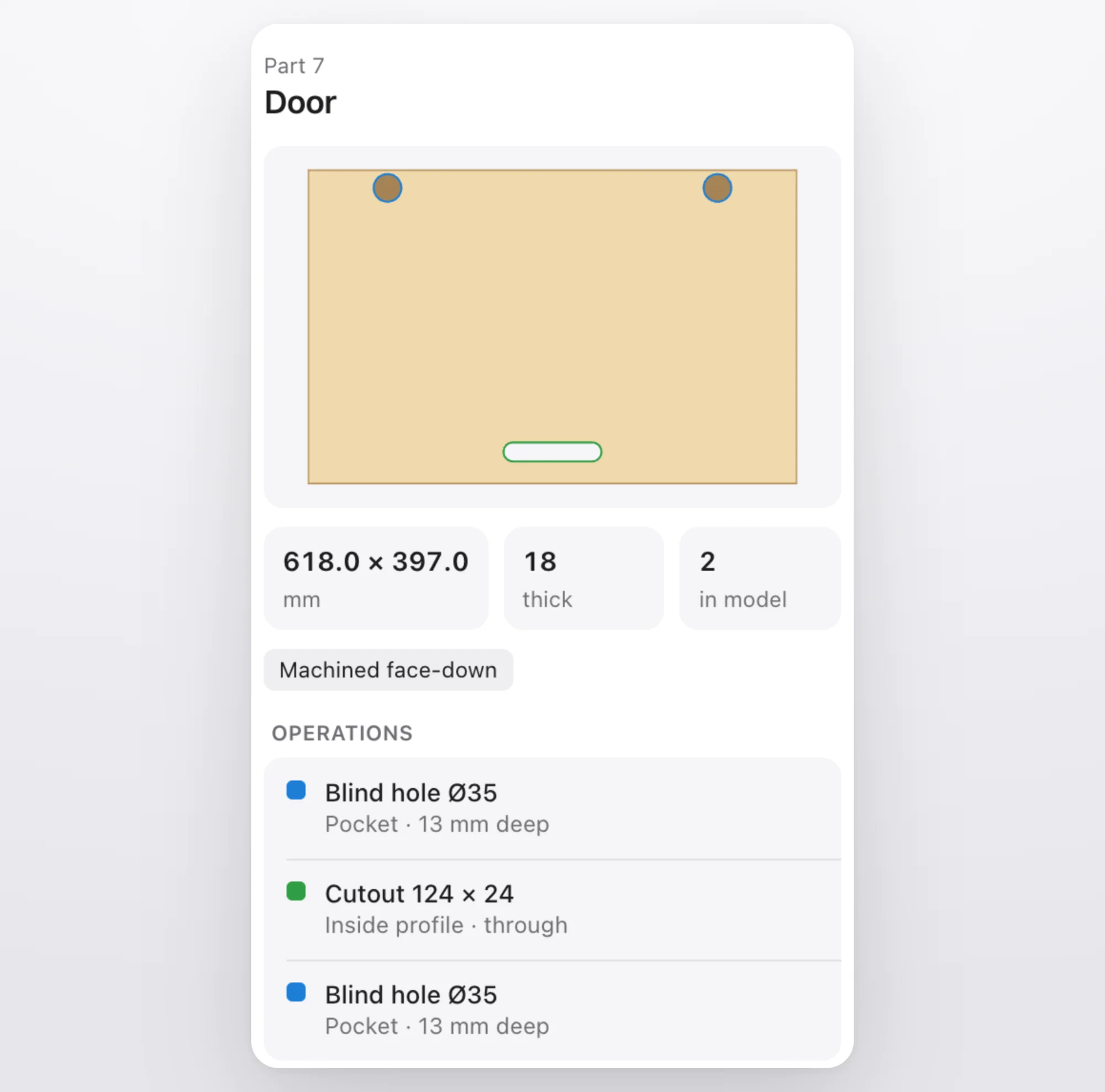
Part inspector showing a door with two hinge-cup pockets and a finger-pull cut-out

Nesting

True-shape nesting on real sheets.

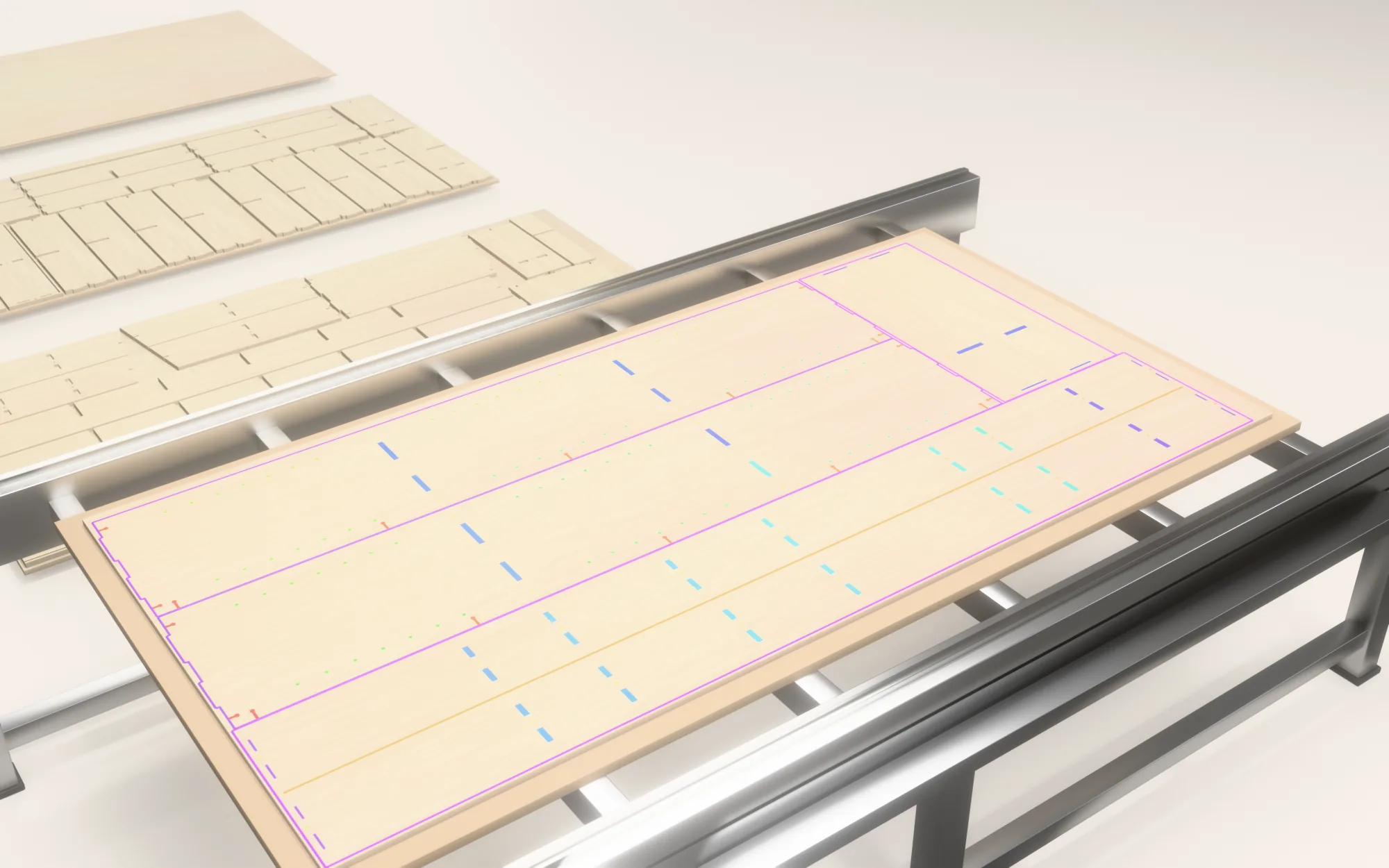
Parts are packed by their actual outlines, not their bounding boxes. Grain direction is respected, several orderings are tried, and each material gets its own sheets. Change the sheet size, margin or spacing and the whole job re-nests while you watch.

  • Grain along the length, across the width, or free, set per part
  • Spacing taken from the cutter that actually cuts the outline
  • Unmatched thicknesses offered as new materials in one click
Plywood sheet on a router bed with the parts nested and their toolpaths drawn in a spectrum, more nested sheets behind it

Toolpaths

The toolpaths you would write yourself.

Tools are chosen from your rack by reach, diameter and what each tool is allowed to do. Then StepNest writes the paths an experienced operator expects, in a sensible order: small features first, outlines last.

  • Ramped contours with tabs or onion skin
  • Stay-down pocketing and rest machining with a smaller tool
  • Helical bores, peck drilling and slots cut at the cutter's own width
  • V-bit mitres that stop short of neighbouring parts
  • Dogbone or T-bone relief in sharp inside corners, globally or per part
  • Pockets at an edge run out past it, so there's no thin wall left
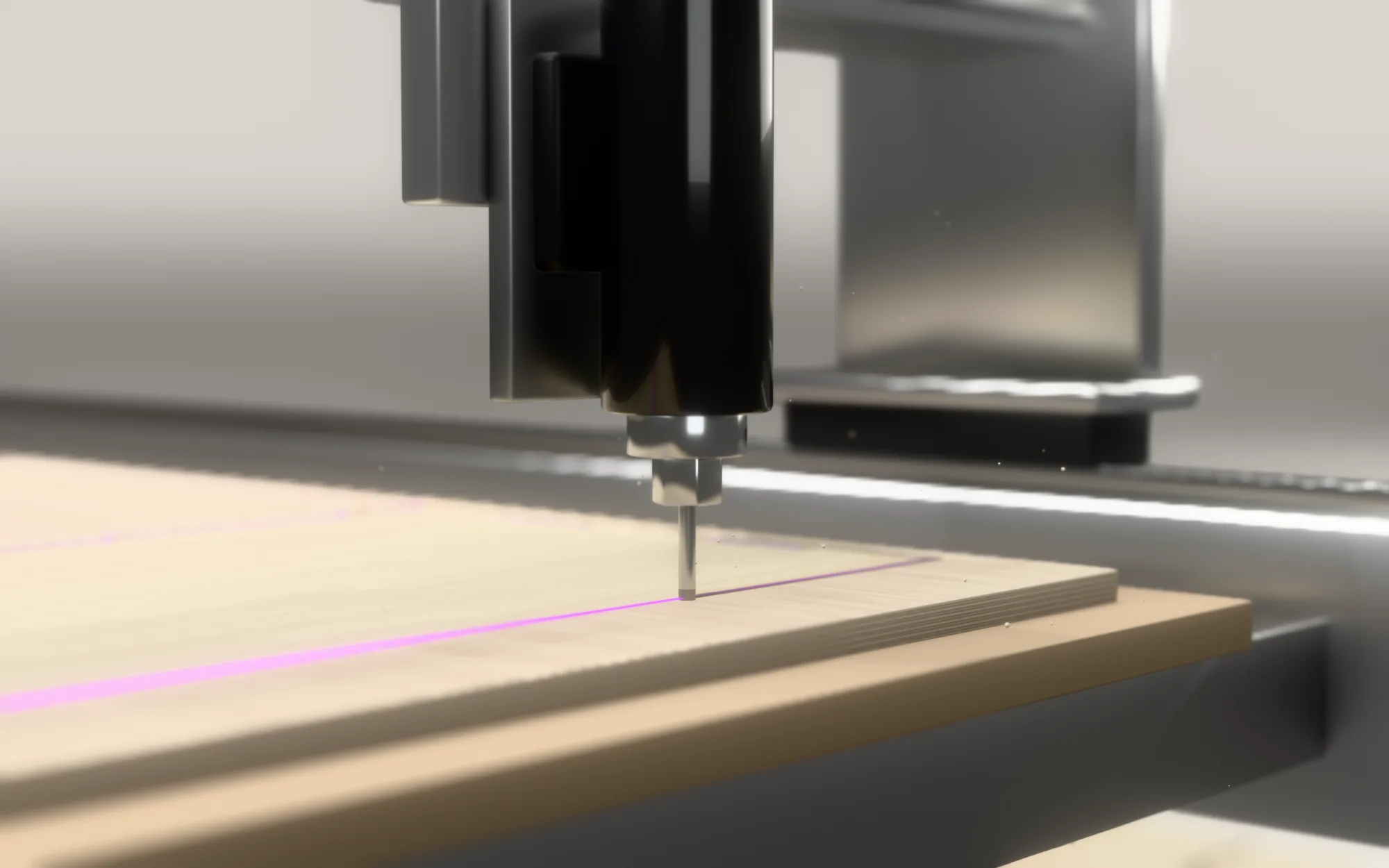
Close-up of the spindle and cutter routing a groove in a plywood sheet

Output

Clean G-code for your controller.

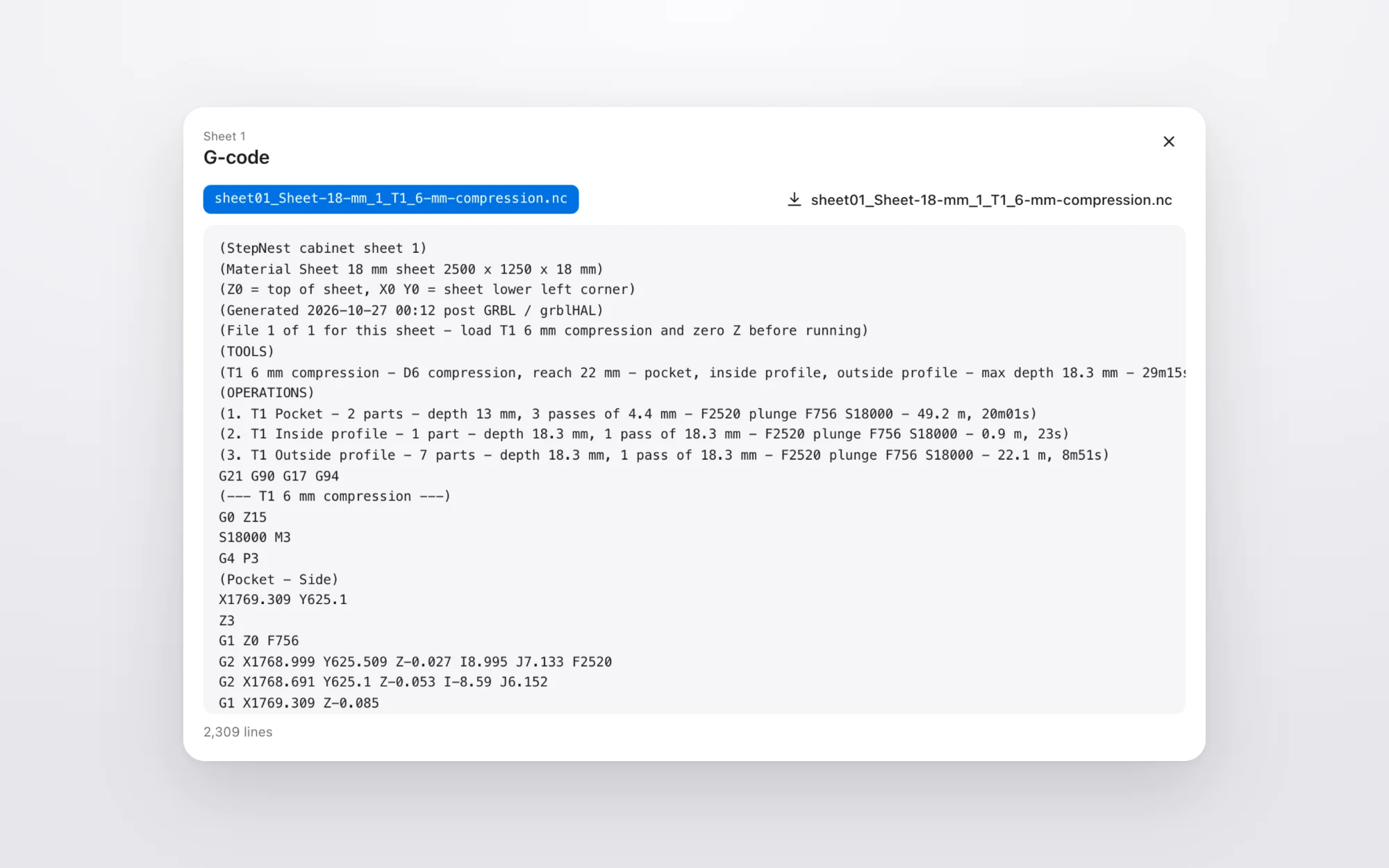
Each post writes the dialect your controller expects, with arcs fitted as G2/G3 moves, canned cycles where supported, and tool changes or one file per tool for machines without a changer. The export includes a setup sheet with part numbers, tools and a drawing of every sheet.

  • Z zero on the sheet top or on the spoilboard
  • Short file names for Masso and MASSO Link
  • Estimated run time per sheet from your machine's feeds and rapids
G-code viewer showing the program for sheet one, with the operations listed at the top

As configurable as your desktop CAM.

It's automatic by default, but nothing is hidden. Everything the planner decides comes from presets you can change.

Machine

Bed size, gantry direction, origin, safe heights, rapids, spindle range and warm-up.

Tool rack

Slots, side of the bed and spacing. Click a tool in the 3D rack to edit it.

Tools

Type, diameter, flutes, reach, V-bit angle, feed factor and allowed operations.

Materials

Nominal and measured thickness, sheet size, grain, spindle speed and chip loads.

Strategy

Climb or conventional, ramps, overcut, stock to leave, tabs, onion skin and pecks.

Per part

Quantity, material override, grain rotation, or leave a part out of the job.

Checked before export

Every program is read back and simulated against your model. Gouges, material left, parts not cut free and moves off the sheet are shown before you cut.

Move parts by hand

Drag a part and it snaps to the nearest free spot. R turns it 90°, Shift+R turns it back.

Two-sided parts

Parts with features on both faces get side-B programs, cut at a fixture corner.

Made for one machine or a whole workshop.

For makers

A garage router, a weekend project.

  • Runs in the browser. Nothing to install or license.
  • Posts for GRBL, grblHAL and Masso controllers.
  • One file per tool for machines without a tool changer.
  • Tabs or onion skin keep small parts in place.

For shops

Cabinets and furniture, sheet after sheet.

  • Whole cabinets from one STEP file, with several files and quantities in one job.
  • Grain direction per part, and separate sheets for each material.
  • Two-sided parts get side-B programs at a fixture corner.
  • A printable setup sheet with part numbers, tools and a drawing of each sheet.

Posts for the controllers in real shops.

  • GRBL / grblHAL
  • Mach3
  • Mach4
  • LinuxCNC
  • Syntec
  • Fanuc
  • Masso

Each post is checked by an independent G-code verifier. It replays the programs against the original solids and checks for gouges, depth errors, cuts outside the sheet and features left uncut.

Privacy

Your files stay on your computer.

The geometry kernel, recognition, nesting and post processors all run inside your browser. Opening a STEP file never sends it anywhere, which also means a large assembly loads just as fast on a slow connection.

You don't need an account. With one, your machines, tools and materials sync between computers and you can save projects. A saved project holds the recognised part shapes and your settings. Never the STEP file.

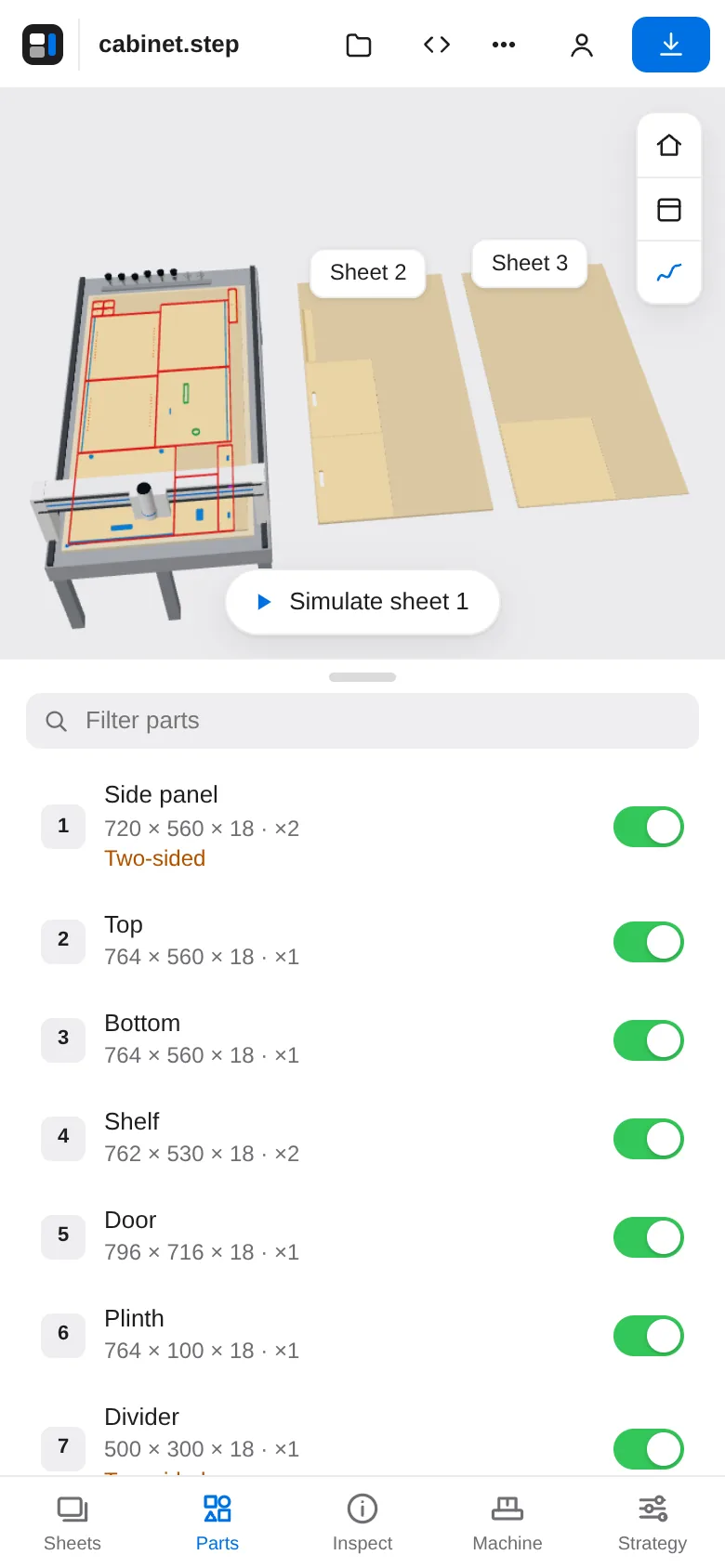
StepNest on a phone showing the parts list of a cabinet

Bring your own model.

Or open the sample cabinet and have a look around.